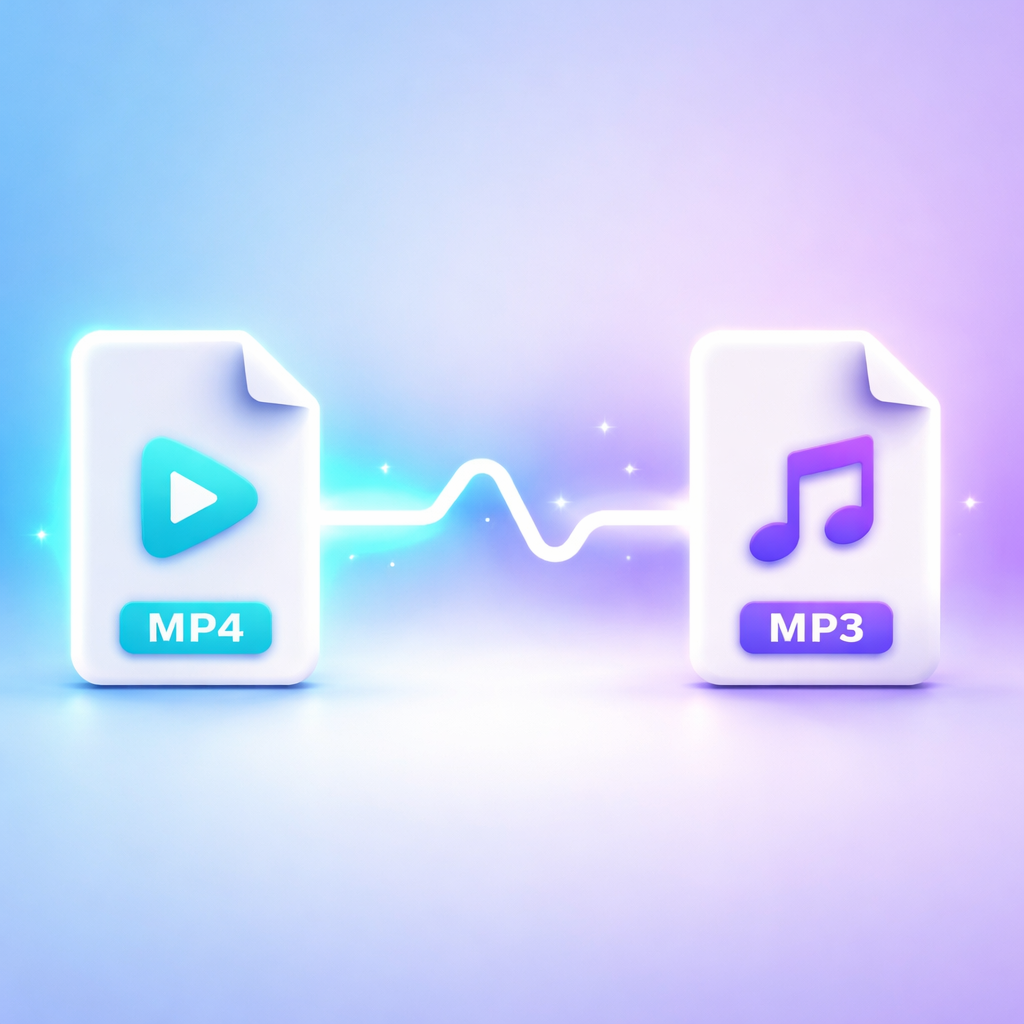
Convert Video to MP3 in Seconds — No Software, No Hassle
You have a video. Maybe it’s saved in your phone’s gallery, or perhaps it’s a link from an online platform. All you want is the audio. Free MP3 Converter convert video link or file to mp3
mp4tomp3.site does exactly that — quickly, easily, and completely free.
You don’t need to download any software. No registration required. No complicated settings to figure out. Just paste your video link or upload your file, and we will convert it to a high-quality MP3 for you.
Two Ways to Use mp4tomp3.site
We designed this tool to be so simple that any user — whether tech-savvy or a complete beginner — only needs to follow two steps. You have two options:
Option 1: Paste a Video Link (Convert from URL)
If you have a link to a video hosted online, simply copy that link and paste it into our converter.
Step-by-Step Guide:
- Copy the Link: Navigate to the video you want to convert. Copy its URL from the address bar.
- Paste the Link: Go to mp4tomp3.site. You will see an input box labeled “Paste Video Link Here” or similar. Paste your copied URL into this field.
- Click Convert: Press the “Convert to MP3” button.
- Download Your File: Our system will fetch the video from the link, extract the audio track, and provide you with a Download MP3 button. Click it to save the audio file to your device.
When Is This Option Best?
- When the video is not saved locally on your device.
- When you want to save mobile data (you download only the audio, not the full video file).
- When you need to process multiple videos quickly without managing local files.
Option 2: Upload a File (Convert from Device)
If the video is already saved on your computer or phone, upload it directly.
Step-by-Step Guide:
- Click Choose File: On mp4tomp3.site, locate and click the “Choose File” or “Upload Video” button.
- Select Your File: Navigate through your device’s folders or gallery and select the video file you want to convert.
- Automatic Conversion: As soon as the file is selected, the upload will begin. Once the upload completes, the conversion to MP3 will start automatically. You do not need to click any additional buttons.
- Download Your Audio: Within seconds, the conversion will finish. A green “Download MP3” button will appear. Click it to save your new audio file.
When Is This Option Best?
- For personal videos (family recordings, voice memos, personal projects).
- When you have a large, high-quality video file and want maximum control over the final audio quality.
- When you need to convert a video for offline listening later.
Supported Formats: What Can You Convert?
We understand users have files in various formats. That is why mp4tomp3.site is not limited to just MP4 input. Our conversion engine supports a wide range of video formats.
Supported Input Formats (Video to MP3)
| Format | Description |
|---|---|
| MP4 | The most common video format. Default for most smartphones and cameras. |
| MKV | High-quality video container, frequently used for HD movies and TV shows. |
| MOV | Apple QuickTime format. Common for videos recorded on iPhones and Macs. |
| AVI | An older but still widely used video container format. |
| WEBM | Web-optimized video format. Often found when downloading from online platforms. |
| FLV | Flash video format. Common in older online video archives. |
| WMV | Windows Media Video. Used on older Windows systems. |
| M4V | iTunes video format (for non-DRM protected files). |
| 3GP | Legacy mobile phone video format. |
Supported Output Format (Audio)
We focus on providing a single, universally compatible output format:
- MP3 (High Quality, up to 320kbps)
We default to a 320kbps bitrate. This means your converted audio will be near-CD quality. If the source video had clear audio, your MP3 will sound crisp and professional.
Note: If you specifically need a lower bitrate for a smaller file size (e.g., 128kbps for long voice recordings), you can usually select this in the advanced settings dropdown before conversion. However, we recommend keeping the default 320kbps setting for the best listening experience.
Frequently Asked Questions (FAQ)
These are the questions our users ask most often. Reading through these should resolve any doubts or concerns you might have before using our free MP3 converter.
Q1: Is this tool really free?
A: Yes, 100% free. We do not charge hidden fees. We do not place watermarks on your audio files. You can convert as many files as you want, as often as you want, at no cost.
In the future, we may introduce a premium tier for users requiring bulk conversions or larger file size limits, but the core functionality you see today will remain free.
Q2: What is the maximum file size limit?
A: Currently, the free limit is 500MB per file. This is sufficient for approximately 2-3 hours of standard definition video.
If your file exceeds this limit, you have two options:
- Compress the video file before uploading.
- Use desktop software (like VLC Media Player) for that specific large file, and use mp4tomp3.site for everything else.
We are actively working on expanding our infrastructure to support larger files soon.
Q3: Are my uploaded files private and secure?
A: Absolutely. We take privacy and security seriously.
- Encryption: All data transferred between your browser and our server is encrypted using HTTPS.
- Auto-Delete Policy: Your uploaded video file and the resulting converted MP3 file are permanently deleted from our servers within 2 hours of conversion completion.
- No Human Access: The entire process is automated. No human employee views, accesses, or scans the content of your files.
Please refer to our dedicated Privacy Policy page in the website footer for complete legal details.
Q4: Where does the converted MP3 file get saved?
A: This depends entirely on your device and browser settings.
- Computer (Windows/Mac): The file typically downloads to your system’s default “Downloads” folder.
- Android Phone: The file appears in the “Downloads” folder or the “Music” folder. You can access it using any File Manager app.
- iPhone/iPad: After tapping “Download,” Safari will usually present a prompt asking where to save the file. Select “Save to Files” and choose a location like “On My iPhone.”
Q5: Can I convert multiple files at once (Batch Conversion)?
A: The current web interface processes one file at a time. However, because the conversion is fast, there is a simple workaround for multiple files:
Open mp4tomp3.site in two or three separate browser tabs. Start an upload in Tab 1, switch to Tab 2 and start another upload, and so on. They will process in parallel, giving you a near-batch conversion experience.
Q6: How long does the conversion take?
A: The total time depends on three factors:
- File Size: A 10MB file may take 5-10 seconds. A 400MB file may take 45-60 seconds.
- Internet Upload Speed: The initial upload is often the longest part. A slow connection will increase total time.
- Server Queue: If many users are converting files simultaneously, there may be a short queue.
Average Time: For a standard 5-minute music video or lecture clip, expect the process to complete in 10 to 30 seconds.
Q7: Does this work on my mobile phone browser?
A: Yes, completely. mp4tomp3.site is fully responsive and mobile-optimized. Simply open Chrome (Android) or Safari (iPhone), visit the site, tap “Choose File,” select the video from your gallery, and the tool works exactly as it does on a desktop computer.
You do not need to download a separate app from the App Store or Play Store. The browser is all you need.
Q8: What should I do if the conversion fails or shows an error?
A: While our success rate is very high, errors can occasionally happen due to file corruption or network issues. Here is a quick troubleshooting table:
| Error Message | Likely Cause | Recommended Solution |
|---|---|---|
| “Invalid URL” | The link format is incorrect or the video is private/copyright blocked. | Ensure the URL is complete and the video is publicly accessible. |
| “File Not Supported” | The video uses a rare or proprietary codec. | Try re-encoding the video to standard MP4 format first. |
| “Upload Failed” | Internet connection dropped during upload. | Check your WiFi/Mobile Data connection and refresh the page. |
| “Conversion Stuck” | Temporary server overload. | Wait for 1-2 minutes. If no progress, refresh the page and try again. |
If the problem persists, please use the contact form on our website. We typically respond within 24 hours.
Q9: Can I use the converted MP3 as a ringtone?
A: Yes, you can, but the method depends on your phone’s operating system.
- Android: Most Android devices allow you to navigate to the file in “My Files” or “Downloads,” tap the three-dot menu, and select “Set as Ringtone.”
- iPhone: iOS restricts direct ringtone setting from files. You typically need to transfer the MP3 to your computer and sync it via the Music app (or Finder) to use it as a ringtone.
Regardless, the file is a standard MP3 that works perfectly in any music player app.
Q10: Can this tool download audio from YouTube or other streaming sites?
A: Our tool is designed to convert any publicly accessible direct video link and local files. We encourage users to respect copyright laws. Please use this service only for content you own, have permission to use, or that is royalty-free/public domain. mp4tomp3.site is intended for personal and legitimate use cases only.
Why Choose mp4tomp3.site Over Other Converters?
The internet is full of “Free MP3 Converter” sites, but many are filled with misleading ads or security risks. Here is a clear comparison showing why our tool is different:
| Feature | mp4tomp3.site | Typical Other Converters |
|---|---|---|
| Account Required | ❌ No | ✅ Often Yes |
| Software Download | ❌ No (Browser Only) | ✅ Yes (Risk of Malware) |
| Audio Watermark | ❌ No | ✅ Sometimes Added |
| Mobile Responsive | ✅ Yes, Optimized | ❌ Often Broken on Mobile |
| File Privacy | ✅ Auto-Delete in 2 Hrs | ❌ Unknown/Unclear Policy |
| Input Formats | ✅ MP4, MKV, MOV, etc. | ❌ Limited to MP4 Only |
| Ad Experience | Minimal, Non-Intrusive | Excessive Pop-ups |
Tips for Getting the Best Quality MP3 Audio
To ensure your converted file sounds exactly how you expect, follow these simple guidelines:
- Check Source Quality: The output MP3 can only be as good as the source video’s audio track. If the original video has muffled sound or loud background noise, the MP3 will retain those flaws.
- Use High Bitrate: Stick with our default 320kbps setting unless you specifically need a tiny file size for email attachments.
- Ensure Stable Internet: If your internet drops during the upload, the file may be incomplete and fail to convert. Use a stable WiFi connection for best results.
- Avoid Special Characters in Filenames: If a file fails to upload immediately, check the filename. Avoid using symbols like
/ \ : * ? " < > |in the file name. Rename the file to something simple (e.g.,video1.mp4) and try again.
Final Words: Your Reliable Free MP3 Converter
mp4tomp3.site was built with a simple mission: Make extracting audio from video as effortless as possible.
Whether you paste a link or upload a file, we care about your privacy and the quality of your output. We stripped away unnecessary features and focused only on what matters: a fast, safe, and free conversion tool that simply works.
If you ever encounter an issue, have a feature suggestion, or just want to give feedback, please reach out via our contact page. We actively listen to our users and continuously improve based on real feedback.
Ready to get started?
Paste your video link in the box below or upload a file and get your high-quality MP3 in seconds.